Custom Blocks
Add your own reusable sections to the Blocks dialog — a pricing table, a team card, a promo banner — alongside the built-in ones.
How it works
Every file in your project's .webhaste/blocks/ folder becomes a block in the 🧩 Blocks dialog. The folder isn't there until you create it; make it yourself and add an HTML file for each block.
- Create
.webhaste/blocks/pricing-table.html(in any code editor, or ask an AI agent to write it). - Put just the block's markup in the file — no
<html>or<body>tags, and no wrapper of your own. - Reopen the Blocks dialog. A Pricing Table tile appears — the name comes from the file name, with dashes turned into spaces.
<section class="py-5 text-center">
  <h2>Simple pricing</h2>
  <p class="lead">One plan, everything included.</p>
  <p class="display-5">$19 / month</p>
  <a class="btn btn-primary" href="/contact.html">Get started</a>
</section>
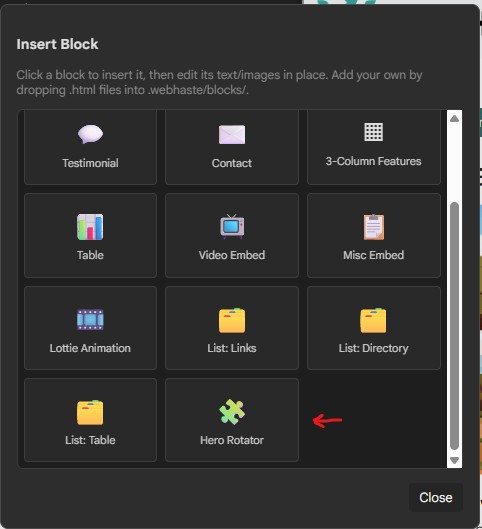
Custom blocks appear after the built-in ones, each marked with a 🧩 puzzle-piece icon — here, a custom Hero Rotator block, pointed out with the red arrow:
Good to know
- WebHaste adds the wrapper. When you insert the block, it's wrapped in WebHaste's standard block container, which is what gives it the move up, move down, delete and ⚙ controls. Leave that wrapper out of your file.
- Write for your site's CSS. A custom block is used exactly as written, whatever CSS framework you chose, so use the class names your site already has (Bootstrap, Tailwind, or your own).
- It's a copy, not a link. Once a block is on a page, it's ordinary page content. Later changes to the block's file don't update pages that already use it — they only affect blocks you insert afterwards.
- Embeds get the 🔗 button. If your block contains an
<iframe>, hovering over it shows the same 🔗 button as the built-in embed blocks, for pasting in a different embed code or URL. - The folder is flat. Put the files directly in
.webhaste/blocks/, one block per file.
For AI agents
WebHaste keeps .webhaste/block-library.md up to date with every block available on your site — the built-in ones, with their markup for your CSS framework, plus your custom ones. An AI agent can read it to see what exists and to write new blocks that match. It's regenerated each time you open the project, so don't edit it by hand. See Using AI Tools.
New to blocks? Start with Working with Blocks.
 Topics