Menus
Build your site's navigation — header menus, footer link columns, and dropdowns.
Open the Menus dialog from ⚙️ Site Admin ▾ → 🔗 Menus. Your menus are stored in .webhaste/nav.json, a plain file in your project folder.
Named menus
A site can have several menus — typically a header and a footer. Use + New Menu to add one and Delete Menu to remove it. Your template decides where each menu appears, with a placeholder named after the menu: {{NAV:header}} shows the "header" menu wherever it's placed, {{NAV:footer}} shows the footer menu, and so on. The same menu can appear in more than one place.
Adding and ordering items
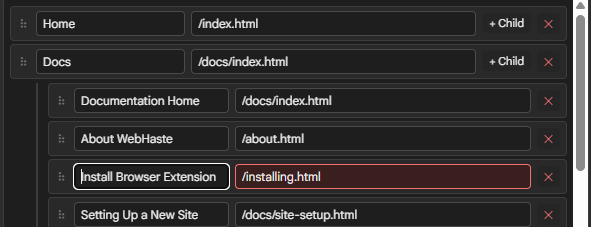
- Click + Add Item, then fill in the Label (the words visitors see) and the link — the page's path, such as
/about.htmlor/blog/index.html. - Drag the ⠿ handle to reorder items.
- To make a dropdown, click + Child on an item and add the items that belong beneath it. Only top-level items can hold a dropdown — one level deep.
Layout
Each menu has a Layout:
- Navbar — the usual horizontal bar, with dropdowns for items that have children. Right for a header.
- Columns — each top-level item becomes a heading with its children listed beneath it. Right for a multi-column footer.
The markup WebHaste writes depends on your site's CSS framework (set in Site Settings): Bootstrap menus use Bootstrap's navbar classes, Tailwind menus get a hover dropdown, and with no framework you get a plain nested list. Every menu also gets cs-menu and cs-menu-name classes (for example cs-menu-footer) so you can style it in your own CSS.
Spotting broken links
If a link doesn't match a page in your project, its field turns red, and hovering shows why — usually a typo or a renamed page. WebHaste doesn't block you from saving, because you might be linking to a page you haven't built yet. Links that start with http, mailto: or tel:, and #anchors, aren't checked. To scan every menu and every page at once, use Check Links.
Editing as JSON
Edit as JSON switches the dialog to the raw nav.json text, useful for pasting in a large menu or making bulk changes. It's the same file you can edit in any code editor.
New pages aren't in any menu until you add them here.
 Topics