Searchable, Sortable Tables with DataTables
Want your List table to have a search box, clickable column sorting, and a "show 10/25/50 entries" menu? You can add the free DataTables library to your site yourself — it's not built into WebHaste, but it takes about five minutes.
What you'll need
This works with the List: Table block (see Lists for how to create a List and place it on a page). WebHaste doesn't include DataTables by default — it's a separate, free library, and adding it is a few small copy-and-paste steps in your site's template and page. Nothing here changes how Lists work, and sites that don't want it are unaffected.
Step 1: Turn off the List's own pagination
DataTables has its own paging, so having both on would show two sets of Previous/Next buttons. Open ⚙️ Site Admin → 🗂️ Lists, choose your list, turn pagination off, and click Save.
Step 2: Add DataTables to your template
Open your template (Site Admin → Edit Template, or the file under .webhaste/templates/) and add these two lines inside <head>, anywhere after the list.js line:
<link rel="stylesheet" href="https://cdn.datatables.net/2.1.8/css/dataTables.dataTables.min.css">
<script src="https://code.jquery.com/jquery-3.7.1.min.js" defer></script>
<script src="https://cdn.datatables.net/2.1.8/js/dataTables.min.js" defer></script>
DataTables' standard script build depends on jQuery, so the jQuery line has to come before the DataTables line. Check datatables.net for the latest version number if you want to update the 2.1.8 above. If your site uses Bootstrap, DataTables also offers a Bootstrap 5 styling bundle that matches your table's look more closely — pick it from the same download page.
Step 3: Give your table an ID
On the page with your List: Table block, find the table controls and click the settings:
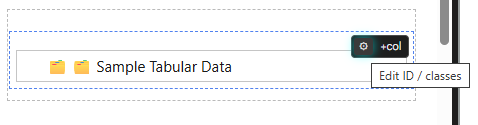
It should already have the table or table-auto classes. Add a unique ID value if one doesn't already exist, like shows-table.
Alternatively, you can switch to Code view and find the <table> tag. Add an id to it, like:
<table id="shows-table" class="table" data-list-src="/lists/shows.json" data-list-view="table">Leave everything else on that tag exactly as it is.
Step 4: Add the startup script
Still in Code view, add this at the very bottom of the page (or paste it into the page's Header code field in Page Properties). Change shows-table to the ID you chose:
<script>
document.addEventListener("DOMContentLoaded", function () {
  var table = document.getElementById("shows-table");
  var tbody = table.querySelector("tbody");
  var obs = new MutationObserver(function () {
    if (tbody.querySelector(".cs-list-placeholder-cell")) return;
    obs.disconnect();
    new DataTable(table, { order: [] });
  });
  obs.observe(tbody, { childList: true });
});
</script>
Why not just new DataTable("#shows-table")? Your List's rows are loaded a moment after the page itself. DataTables has to wait until the real rows exist, or it sets itself up on the placeholder row and never notices your data. The script above watches the table and starts DataTables the instant the real rows appear.
The order: [] part tells DataTables to keep the sort order you chose for the List, instead of re-sorting by the first column. Remove it if you'd rather DataTables sort by the first column to begin with.
Several tables on one page?
Swap the single-table lookup for a loop, so every List: Table on the page gets DataTables without needing an ID:
<script>
document.addEventListener("DOMContentLoaded", function () {
  document.querySelectorAll("table[data-list-src]").forEach(function (table) {
    var tbody = table.querySelector("tbody");
    var obs = new MutationObserver(function () {
      if (tbody.querySelector(".cs-list-placeholder-cell")) return;
      obs.disconnect();
      new DataTable(table, { order: [] });
    });
    obs.observe(tbody, { childList: true });
  });
});
</script>
This version can live in your template's <head> or your site's scripts/main.js file, so it applies to every page with a List table automatically.
Things to know
- You won't see it in the editor. Like every List block, the editor and live Preview show only a placeholder, and outside scripts can't run in Preview at all. Publish, or use Render to Local Folder and open the result in a normal browser tab, to see the real thing.
- Link and image columns work. Links stay clickable. Image-only columns can't be searched or sorted, since they have no text.
- Offline (Packaged) sites: your List still renders, but DataTables is loaded from the internet. For a site that must work with no connection at all, download the DataTables
.jsand.cssfiles, put them in yourscripts/folder, and point the two tags in Step 2 at/scripts/…instead. - Styling: DataTables adds its own classes (
dt-search,dt-length,dt-paging) around your table. See the DataTables styling docs to customize them.
DataTables can do a lot more — column visibility, export buttons, fixed headers, and so on. Its examples page shows what's possible; anything there that works on a plain HTML table works on a List: Table.
 Topics