Page Properties
The settings for a single page — its title, description, language, template, and how search engines and your site search treat it.
Click the ⚙ icon next to any page in the file list to open Page Properties. Your choices are saved in .webhaste/pages.json in your project folder, not inside the page itself, so a page's content stays clean.
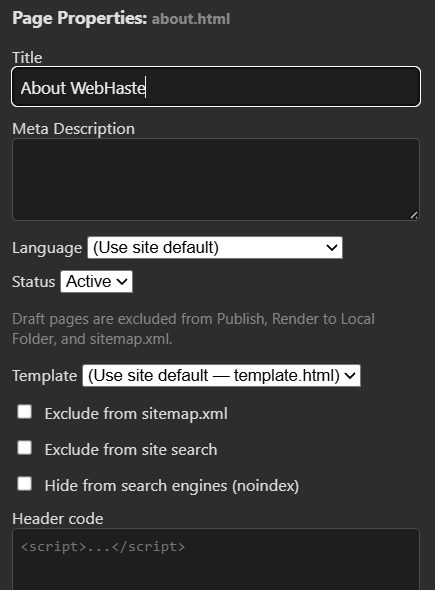
Fields
- Title — shown in the browser tab and in search results. WebHaste displays it as
Page Title | Site Name, and it's also the headline in link previews. Leave it blank and WebHaste builds one from the file name. - Meta Description — one or two plain sentences (roughly 120–160 characters) that sum up the page. Search results and link previews use it. Write it for people, and make it different on every page.
- Language — leave on (Use site default) unless this page is written in a different language. It sets the page's
<html lang>, which helps browsers, screen readers and search engines. - Status — Active pages are published. Draft pages stay in your project and still preview normally, but they're left out of Publish, Render to Local Folder, and
sitemap.xml— handy for work in progress or a page you want to take down without deleting it. - Template — which layout wraps this page. (Use site default) unless you want something different, like a landing page with no navigation. See Using Multiple Templates.
- Exclude from sitemap.xml — the page is published but not listed in your sitemap.
- Exclude from site search — the page is published but won't show up in your own site search.
- Hide from search engines (noindex) — adds a tag asking Google and other search engines not to list the page. It's the only one of these three checkboxes that affects outside search engines. See SEO and Search Engines.
- Header code — raw HTML that's added just before the page's closing
</head>, on this page only. See below.
The three checkboxes work independently of each other and of Draft status.
Header code
Use this for things that belong on one page rather than the whole site. Common examples:
- A Google Ads or Analytics conversion snippet that should only fire on a "thank you" page.
- A
<link rel="canonical" href="https://example.com/preferred-page.html">tag on a page whose content nearly duplicates another — see SEO and Search Engines. - Structured data (JSON-LD) for a page type WebHaste doesn't add for you, such as an Article or a FAQ.
The code is pasted in exactly as you type it, so only paste snippets from sources you trust. Scripts don't run in the editor's preview, so check the result on your published site or in a rendered copy. For tracking tags that should appear on every page — or several tags that change over time — put one Google Tag Manager snippet in your template instead and manage the rest there. And don't add your own Open Graph or Twitter tags here: WebHaste already adds those for every page.
 Topics