SEO and Search Engines
What WebHaste does for search engines automatically, and the few settings that are yours to fill in.
Set your domain first
Enter your site's address in Domain under Site Settings. It's what turns on your sitemap and gives link previews a full address. With no domain, WebHaste can't create a sitemap. A common mistake is wondering why the sitemap is missing and not noticing the domain is blank.
Sitemap
Every time you publish, WebHaste builds sitemap.xml listing your published pages. You don't create or edit it — a file with that name in your project folder isn't used. Draft pages and pages marked Exclude from sitemap.xml in Page Properties are left out. Search engines find it at yoursite.com/sitemap.xml, and you can submit that address in Google Search Console.
robots.txt
A robots.txt file is created in your project folder when you first open it, with a permissive default that lets search engines in. It's an ordinary file you can edit and it's published exactly as you leave it. Use it for broad rules, like keeping crawlers out of an entire folder. To keep an individual page out of Google, use the next option instead.
Keeping a page out of search results
Tick Hide from search engines (noindex) in a page's Page Properties. WebHaste adds a tag asking search engines not to list the page. Don't block the same page in robots.txt — a search engine that's blocked from the page never sees the tag. The other two checkboxes (sitemap and site search) only affect WebHaste's own files; see Adding Site Search.
Link previews
When someone shares a page on social media or in a chat app, the preview card comes from tags WebHaste adds to every page automatically: the page's title and description, your site name, and the page address (when a domain is set). There's nothing to switch on. Writing a good title and description for each page — in Page Properties — is what makes the previews, and your search listings, look right. WebHaste doesn't add a preview image yet.
Schema markup for your business
Under Schema Markup (Homepage) in Site Settings, you can describe your organization or local business for search engines: choose Organization or Local Business, then fill in the name and, optionally, a logo address, phone number, street address, and your social profile addresses (one per line). WebHaste turns it into structured data on your homepage. A type and a name are the minimum; anything left blank is simply left out, and nothing is added at all while the type is None.
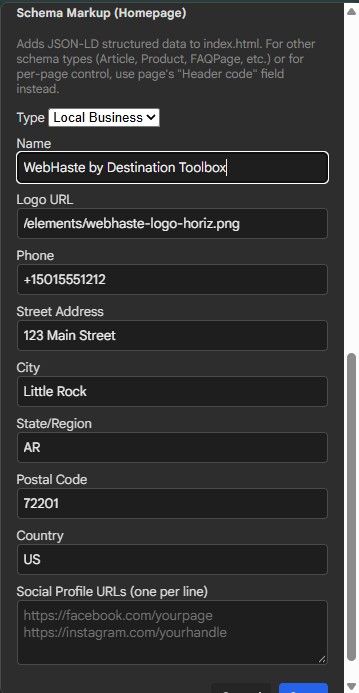
Structured data for other kinds of pages — an article, a product, a FAQ — goes in that page's Header code as a JSON-LD <script type="application/ld+json"> block. Only describe what's actually on the page, and don't repeat the business details WebHaste already adds to the homepage.
Duplicate or near-duplicate pages
If two pages say nearly the same thing, tell search engines which one counts. On the page that should not rank, add this to its Header code:
<link rel="canonical" href="https://example.com/preferred-page.html">Use the full address with https://, in the same form as your sitemap: the page's file name including .html, or just the domain for your homepage. Point at a page that's published — not a Draft, a noindex page, or a redirected one. If a page shouldn't be listed at all, use noindex instead.
Moved or renamed pages
If a page's address changes, set up a redirect so visitors and search rankings follow, and run Check Links to tidy your own links.
Packaged copies
A Packaged copy built to open from disk leaves out the sitemap and robots.txt, since they only mean something on a real domain. See Publishing.
A note on Lists
Entries in a List are filled in by JavaScript when the page loads, so they're not in your site search, and search engines may not index them as reliably as ordinary page text. For anything that needs to rank or be searchable — a blog index, a staff bio — also put it on the page as regular text.
Running an Audit
An AI agent can audit titles, descriptions, headings, alt text and more across a whole site for you — see Using AI Tools.
 Topics