Add Analytics + Pixels the Right Way on Static Sites

Analytics on a static site is refreshingly simple: there’s no CMS plugin roulette, no “which theme sub-file did this snippet get pasted into?”, and no mystery scripts multiplying in the background. You add the tracking code once, in the right place, and you’re done.
This guide covers the practical patterns for Google Analytics (GA4), Google Tag Manager (GTM), and the Facebook/Meta Pixel on static sites (including WebHaste-built sites) without tanking performance or double-counting your data.
The static-site tracking mindset (you’re in control)
On a static site, you decide exactly what loads, where it loads, and when it loads. That’s the whole point. The tradeoff is you can’t rely on a plugin to “just handle it.” The upside is you get clean, repeatable, debuggable tracking.
Rule of thumb: Site-wide tags belong in your template(s) so they apply to every page. Conversion-event tags can be added on specific pages when needed.
Decide your approach: GTM vs direct snippets
When GTM is the right move
GTM (or Google Tag Manager) is usually the cleanest from a site-maintenance perspective: one container snippet in your template, and you manage tags in a dashboard provided by Google. If you’re running multiple marketing tools, events, or client campaigns, GTM keeps your website code from becoming a paste-bin.
- You want one place to manage tags
- You want to set up "triggers" for when tracking code fires
- You expect tracking requirements to change often
- You’re an agency managing multiple sites and setups
When direct GA4 + Pixel is totally fine
For many small business sites, GTM is overkill. If your tracking code is a set-it-and-forget-it thing, then direct snippets are acceptable, slightly faster, and often more reliable day-to-day.
- You only need GA4 pageviews + a couple basic events
- You just need the basic Meta/Facebook tracking pixel
- You don’t have desire for another login or to manage GTM complexity
Wait... my snippet from Google Analytics says "googletagmanager"?!
When Google introduced Google Analytics 4 several years ago, they started providing code that pointed to the googletagmanager.com domain in all cases. Even though the code Google Analytics provides uses the GTM infrastructure and looks identical to snippets for GTM... it is not a full-fledged GTM account that you can manage.
If you want to use Google Tag Manager, you will need to sign up for that service separately, and then insert your Google Analytics code in your container in the GTM dashboard.
Where tracking code lives on a static site
Static sites are fully-rendered files. That means there are only two “levels” you care about:
- Global (site-wide): added to a project's template(s) so it appears on every page
- Page-specific: added only on a specific page (thank-you pages, ad landing pages, conversion pages)
Site-wide template (global)
Using a text or code editor (Notepad++, VS Code, etc.), put your main analytics/pixel snippets in the template that wraps your pages. In WebHaste terms, this means adding the snippet to the template code that gets applied to every page at render time.
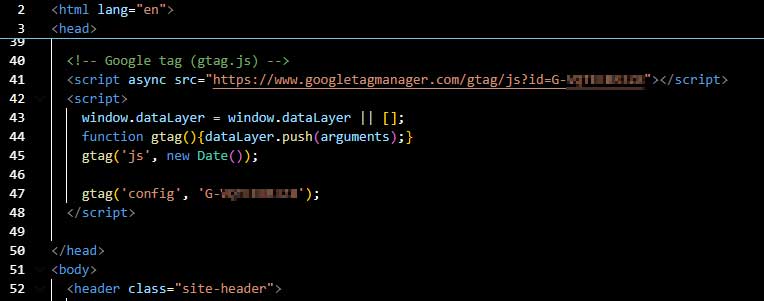
If your site uses multiple templates, you'll need to make sure the code is pasted into each version.
Page-specific tags (conversions)
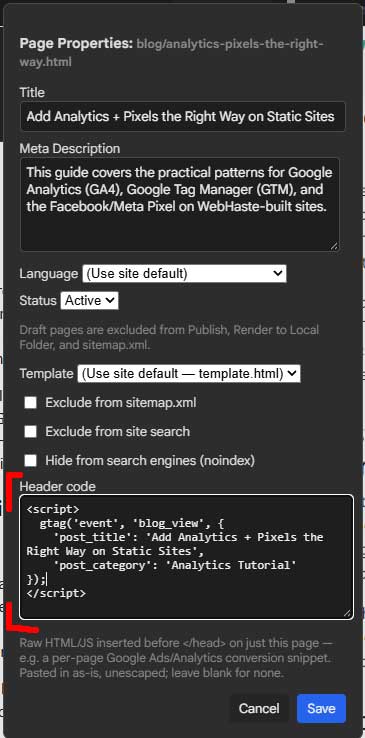
Conversion tags (or special scripts for one campaign) are secondary scripts that work in conjunction with the main script you pasted into the site template. If you're using conversion tracking, you'll need both of these.
The overall tag tracks page views and overall user data. But a secondary tracking snippet might be used to track blog views, newsletter signups, whitepaper downloads or some other activity on your site.
In WebHaste, page-specific snippets can be managed in the "Header Code" block of the page settings dialog.
Common mistakes (aka “why is my data weird?”)
- Double-loading: GA4 installed directly and via GTM
- Wrong environment: mixing staging and production IDs
- Copy/paste drift: different pages have different versions of the snippet
- Blocking scripts: tags that delay rendering or load huge third-party bundles
- Too many tags: every “free widget” wants to add a tracker; say no
- No verification: you didn’t confirm events are firing (don’t trust vibes)
Quick implementation checklist
- Pick your approach: GTM (flexible) or direct snippets (simple)
- Add the main snippet(s) to your website template(s) once
- Add conversion-only tags on specific pages if needed
- Render/build the site and verify the output HTML contains exactly one copy of each tag
- Test in the browser using the vendor’s debug tools (and/or GTM preview mode)
- Publish, and after hours/days, check real traffic data
Secondary resources:
 Recent Articles