Broken Links: Has WebHaste solved every website manager’s headache?
Broken links are the kind of problem that feels “small” right up until it’s not.
They don’t crash your site. They don’t throw an error in your face. They just quietly turn your navigation into a trust leak: a dead menu item, a 404 from a renamed page, a “learn more” button that goes nowhere.
And as dead links linger, SEO is harmed in real ways.
In WebHaste v0.4.0, we added two link-checking features designed to catch this stuff before you deploy. Not enterprise ceremony. Just a practical safety net for small websites.
Why broken links are a problem (even on “simple” sites) ☹️
Small sites change constantly: you rename pages, reorganize navigation, swap sections, delete old promos, tweak slugs, or copy/paste chunks from another project.
And the web is ruthless about one thing: if the URL doesn’t exist, it doesn’t exist.
The two kinds of broken links that hurt the most
- Navigation links: If your menu points to a missing page, the whole site feels unreliable.
- In-content links: Buttons and “read more” links are usually tied to your most important conversions (contact, pricing, booking, downloads). They're also really easy to miss when page URLs change.
Bonus pain: agencies and teams. Broken links are the easiest way to make a handoff feel messy, even when the design looks great.
What WebHaste added in v0.4.0 (and why it matters)
WebHaste introduced two link checker features in version 0.4.0. The goal is simple: give you a fast, repeatable way to spot problems while you’re still in “editing mode,” not after you’ve shipped.
Feature #1: Menu Link Checker
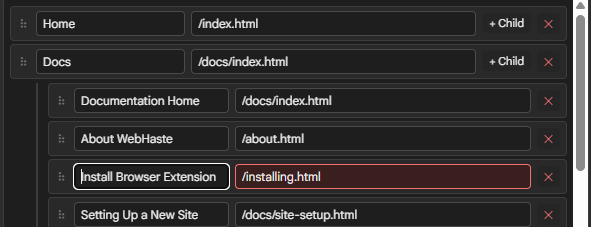
What it does: As you're editing links in your menus, WebHaste checks in real-time that your destination page exists and is correct.
What it looks like: Incorrect links are highlighted with a red input and border.
Feature #2: Whole-Site Link Checker
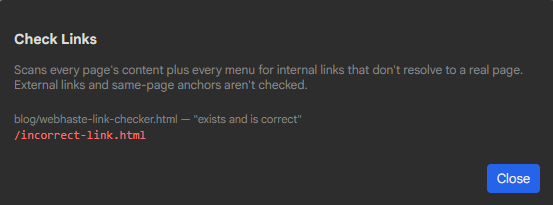
What it does: Scans your entire site for links inside the content of pages, and verifies that internal links go to existing pages. We recommend running this checker before each deployment (Note: this does not check links to external sites).
Where you’ll notice it: Under the Site Admin menu, select Check Links.
A practical workflow: catch bad links before you deploy ✔️
If you want this to actually work in real life, it has to be a habit you’ll follow. Here’s a simple routine that doesn’t turn your website into a part-time job.
- Run the link checker after structural edits: renaming pages, moving files, changing navigation, or importing content.
- Fix the obvious stuff immediately: missing pages, wrong filenames, outdated PDFs.
- Re-run once before deployment: treat it like a pre-flight check.
- Do a quick packaged render test: if you’re deploying somewhere new, verify links in the rendered output too.
💪Also added in WebHaste v0.4.0: Redirects
Making sure your links are correct is only the first step when moving/deleting existing pages ... you need to let search engines/AI crawlers know that the original content has moved or been removed.
Cloudflare Pages and Netlify allow you to specify 301 and 302 redirects, and WebHaste now supports those natively. It's much better for your site's SEO to redirect pages this way than to allow them to return a 404 Not Found message.
Here's what these redirects tell search engines and crawlers:
- 301 Redirect - The page has been moved permanently or deleted. Remove your links to it and transfer page history/authority for this content here instead
- 302 Redirect - The page has been moved or deleted temporarily. Go here instead for now, but keep history/authority on the original link
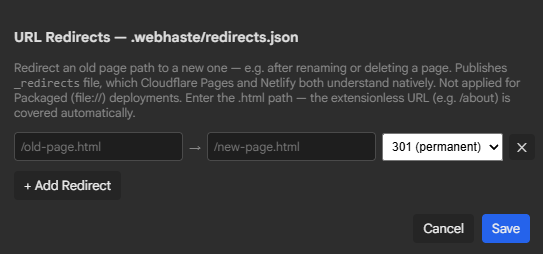
Note: If you host your site on a different platform, you may need to set up redirects manually. Check with your system admin or hosting provider on how you need to do this.
🤷Common edge cases (aka: don’t blame the tool)
Link checking is incredibly useful, but it’s not magic. A few gotchas to keep in mind:
External links can rot overnight
Even if your site is perfect, the rest of the internet is not. External URLs change. PDFs disappear. Companies redesign their docs. If you link out a lot, plan to re-check periodically.
Anchors and “same page” links
If you link to #sections on a page, make sure the target IDs still exist after edits. This is especially easy to break when you refactor headings.
Embeds and JavaScript-driven links
If a third-party widget generates links dynamically, a static link checker may not see everything it does. That’s not a WebHaste problem; that’s just how dynamic scripts behave.
Bonus: link hygiene habits that keep you out of trouble
- Keep filenames short and boring: lowercase, hyphens, no spaces. Future-you will thank you.
- Don’t “just delete” pages: replace with a new page or add a redirect strategy on your host when needed.
- Use a Git repo for history: it’s the easiest rollback plan when you accidentally break structure.
- Do a quick scan after big edits: treat it like checking spelling before publishing.
Next steps
If you’re tired of broken links being a surprise you discover in production, WebHaste’s link checker features are built to make that problem boring again.
 Recent Articles