Convert Your Existing WordPress Site into a Static Site (Without Rebuilding Everything)

You don’t have to “start over” to get off of the WordPress maintenance merry-go-round.
A realistic path looks like this:
- Export your WordPress site to static HTML
- Clean up the output (links, assets, navigation)
- Move the cleaned site into a file-first workflow you control like WebHaste
- Deploy it to fast, cheap (often free) static hosting
This article walks you through that path using Simply Static for the export and WebHaste to manage the site going forward.
Learn about the specific steps bewlo, or jump to the video tutorial that uses Claude Code to perform this migration automatically.
NOTE: WebHaste ships with an AI Skill that performs a WordPress to WebHaste conversion for you. That is what is demonstrated in the video.
Why go static (and when you shouldn’t)
What you gain
- Security: Few or no third-party plugins, fewer moving parts, fewer “urgent patch” alarms
- Speed: Static pages are hard to beat for performance, especially when paired with a CDN
- Stability and Freedom: Your site becomes a set of files that you control: you can back up, version, and move anywhere
- Lower maintenance: No database babysitting, no stale caches, no plugin roulette
What changes when you go static
Static sites are great at delivering content. They’re not great at “server-side features” unless you add them back intentionally.
- Forms: you’ll typically use an embed or a form service
- Comments: usually removed, replaced, or handled by a third party
- Search: often becomes client-side search (WebHaste supports this approach)
- Membership / carts / dashboards: not a great fit for pure static (you’ll need to layer in cloud "workers" or a real app stack)
Honest take: if your WordPress site is basically pages, posts, and a contact form, static is usually a win. If it’s a complex application, keep it dynamic.
Inventory your “dynamic” features before you export
Before you touch any tooling, list the parts of your WordPress site that aren’t just content.
- Contact forms (and where submissions go)
- Email signup forms
- Site search
- Comments
- Galleries/sliders that depend on a plugin
- Member-only pages
- Anything that writes to a database
For each item, decide one of these:
- Replace it with a static-friendly service (embed)
- Rebuild it with functions/workers (more advanced)
- Remove it (if it’s not pulling its weight)
Resource: 3rd Party Form Providers that work with static sites
Export WordPress to static HTML (Simply Static)
The simplest way to get your content out of WordPress is to export it as a static copy of the site.
We recommend the Simply Static plugin:
https://wordpress.org/plugins/simply-static/
What you’ll get (and why it can be messy)
A static export is usually “correct enough” to load in a browser or even deploy to the Internet, but it’s rarely in a clean shape you’d want for long-term maintenance.
- Every page is complete... no good way to change site-wide navigation and templates
- Editing pages typically has to be done directly in code
- Links may be absolute (Simply Static gives you the option to rewrite links when exported)
- Fonts, stylesheets and javascript will need to be carried over from WordPress or Elementor (and sometimes modified to continue working)
- Paths can be weird (especially around media uploads)
- Navigation may not match the new file structure you want
- HTML can be bloated (theme wrappers, shortcodes rendered strangely, lots of nested divs)
That’s normal. The export is step one, not the finish line.
Export tips (so cleanup is easier)
- Export a staging copy first (don’t experiment on your production site)
- Make sure your export includes media files
- Decide what your “new” canonical domain will be (so you can fix URLs consistently)
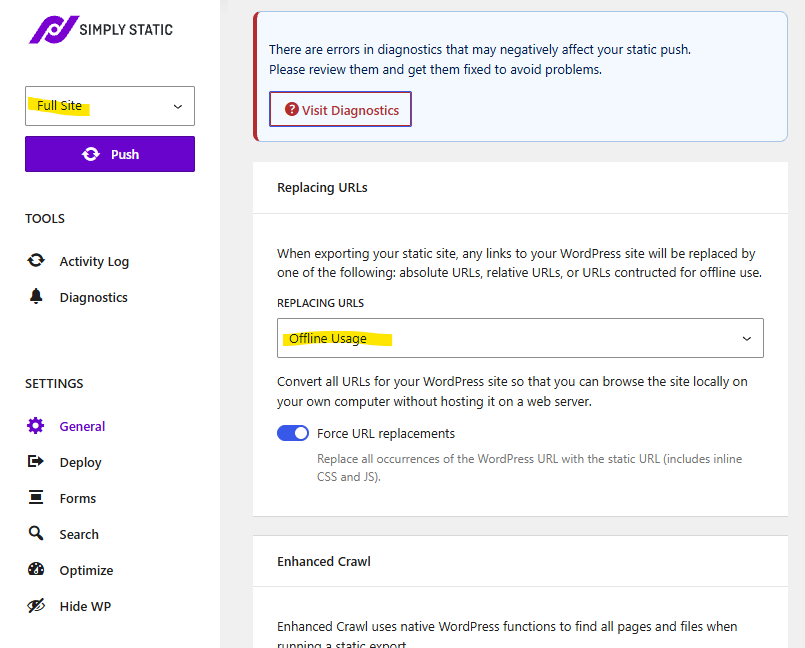
Recommended Simply Static Settings: When preparing your source site in WordPress for export, make sure that you select "Offline Usage" and that you are exporting the Full Site.
Simply Static provides additional settings if you want to further rewrite paths or export only certain kinds of content.
Clean up the output (links, assets, navigation)
This is the part most people skip, then wonder why their static site feels fragile.
Pro tip: Have your AI coding tool perform this audit and make updates.
Fix internal links + relative paths
Your goal: internal links should work no matter where the site is hosted.
- Convert hard-coded absolute links to site-relative links where appropriate
- Make sure images and downloads resolve from their new locations
- Decide whether you want extensionless URLs (common on Cloudflare Pages/Netlify)
Navigation + file naming
Static sites get easier when your structure is boring (in a good way).
- Use consistent, readable filenames
- Avoid “page-id-3921.html” style URLs if you can
- Make sure navigation matches the final structure (not WordPress’s old permalink assumptions)
Assets: images, CSS, JS
Put assets where you’ll actually find them later.
- Gather images into a predictable folder (example:
/assets/) - Keep CSS/JS organized (especially if you plan to edit the design later)
- Remove dead weight (old theme files you don’t need)
WebHaste Asset Folder Structure:
| WebHaste Folder | Purpose |
|---|---|
| /assets | Images and files that users will need to access for placement within pages |
| /elements | Background images, favicons, icon SVGs or other template-related files that are essential, but users don't need to access |
| /scripts | Any CSS, JS or font files needed by your website and template |
Bring it into WebHaste (local-first editing you control)
Once your exported site is cleaned up, WebHaste becomes the “make it maintainable” layer: edit locally, preview instantly, and deploy without turning your site back into a database-driven project.
Create a WebHaste template from your exported layout
Take your exported HTML layout (header/footer/sidebar) and turn it into a WebHaste template with content tokens.
This is the most time-consuming part of the process. You'll need to identify which parts of the page are site-wide, and which parts are page-specific. You'll need to convert homepage features (testimonials, hero images, rotators) into blocks that can be managed in WebHaste. You'll need to set up header and footer navs, and wire those into the template.
While this can be done manually, this is a step that can be performed pretty accurately using AI.
Turn each page into a clean content partial
Instead of dragging around full WordPress theme markup on every page, your individual pages need to become content-only HTML partials. There's no head/foot or template layout. Just content. During deployment, WebHaste will place these within the template wrapper.
Your individual pages should have basic structure like this:
<h1>Page Title</h1>
<p>Intro paragraph...</p>
<h2>Section</h2>
<p>More content...</p>
If your export includes repeated blocks (hero sections, feature grids, callouts), consider turning those into reusable partials/blocks. These HTML partial files should be stored in the .webhaste/blocks folder.
Use WebHaste tools to catch broken links early
Static migrations fail in boring ways: broken internal links, missing images, navigation pointing to old URLs.
Do a full pass before you deploy:
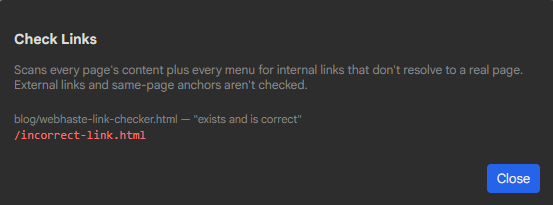
- Run a site-wide link check in WebHaste
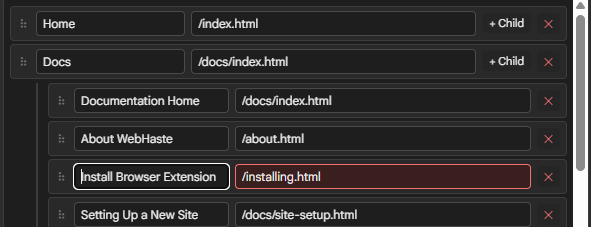
- Validate navigation menus
- Preview key pages on mobile and desktop
Deploy + verify (and don’t skip redirects)
Once the site is clean and stable locally, deploy it to static hosting (Cloudflare Pages or Netlify are common picks).
Deploy to Cloudflare Pages / Netlify
- Deploy and open the live URL
- Test the live site on phone + desktop
- Verify HTTPS is enabled
Redirect plan + 404 monitoring
If you’re migrating an existing site, redirects are not optional. They’re how you keep old links (and SEO value) from turning into a wall of 404s.
- Make a list of your top pages (and any pages with backlinks)
- Map old URLs to new URLs
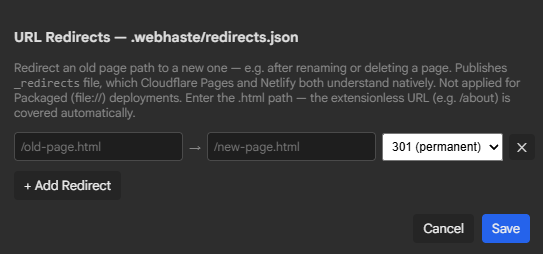
- Add redirects at the host level (WebHaste can manage your 301/302 redirects)
- Watch for 404s after launch and patch quickly
SEO sanity checks
- Confirm page titles and meta descriptions are reasonable
- Set canonical URLs (especially if your domain changes)
- Verify sitemap.xml and robots.txt after publishing
- Spot-check OpenGraph/Twitter previews (optional, but nice)
A practical checklist (print this and save yourself a headache)
- Inventory dynamic features (forms, comments, membership, etc.)
- Export WordPress to static HTML (Simply Static)
- Validate pages load correctly
- Fix internal links and relative paths
- Clean up navigation and file naming
- Organize assets (images/CSS/JS)
- Create a WebHaste template from your cleaned layout
- Convert each page into a clean content partial
- Run link checks and menu validation
- Deploy to Cloudflare Pages or Netlify
- Add redirects (old URLs → new URLs)
- Monitor 404s and patch quickly
Make your site a set of files you control
If you’re ready to keep your content but ditch the WordPress maintenance cycle, WebHaste is built for exactly this kind of workflow: local-first editing, real previews, and simple deployment to static hosting.
Tutorial: Using AI to Convert a WordPress Site to WebHaste
 Recent Articles